For Event Creators : Event Management : Checklists and Todos
Each team member, or "Admin" can be assigned tasks in Checklists that you construct. A Checklist consists of a set of tasks needed to complete a larger goal related to the event. Each task in the Checklist is called a "Todo" in OurStoryz. You can describe the task in detail, include files and media associated with the task, and assign specific team members to complete the task.

Creating a Checklist
You can create a new Checklist by navigating to "Checklists" in the blue service menu, and selecting "Add Checklist"
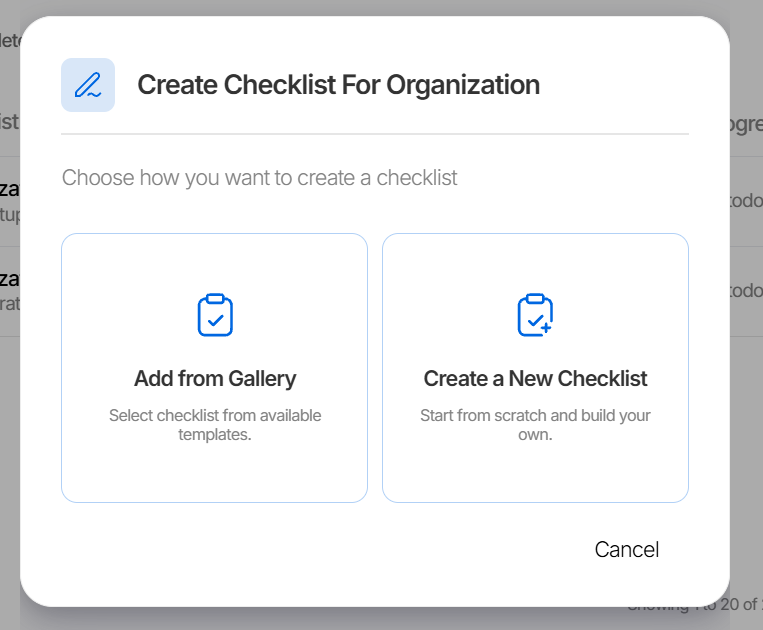
You have the option of using an existing checklist, or creating a new one from scratch. OurStoryz has a large set of Checklists suitable for events like weddings, anniversaries, business meetings, and others.
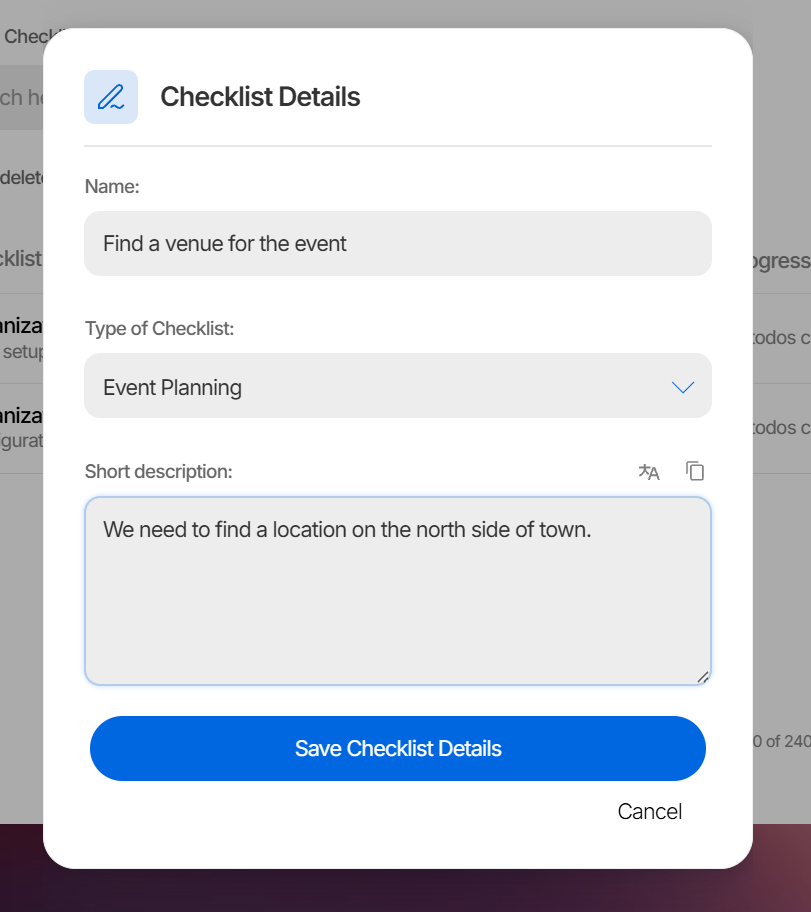
You can edit data associated with the Checklist after making your selection:
Checklist context
Checklists are assigned relative to an
- Individual event
- Storyz (group of events)
- Organization
You can find Checklists associated in two ways. One way is to go to the Organization, Storyz, or event, and find the "todos" link:
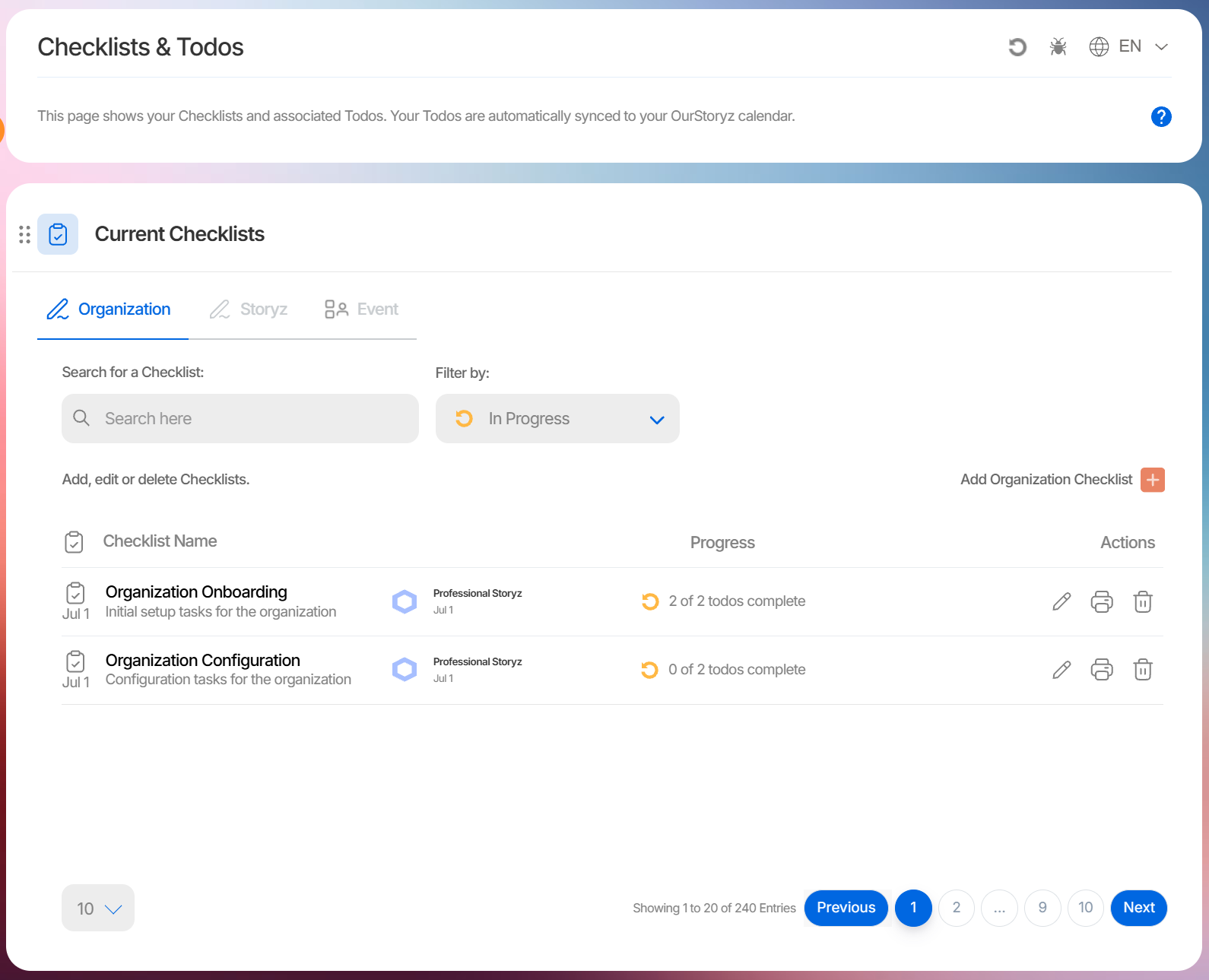
Organization Todos are accessed directly from the global "Checklist" page
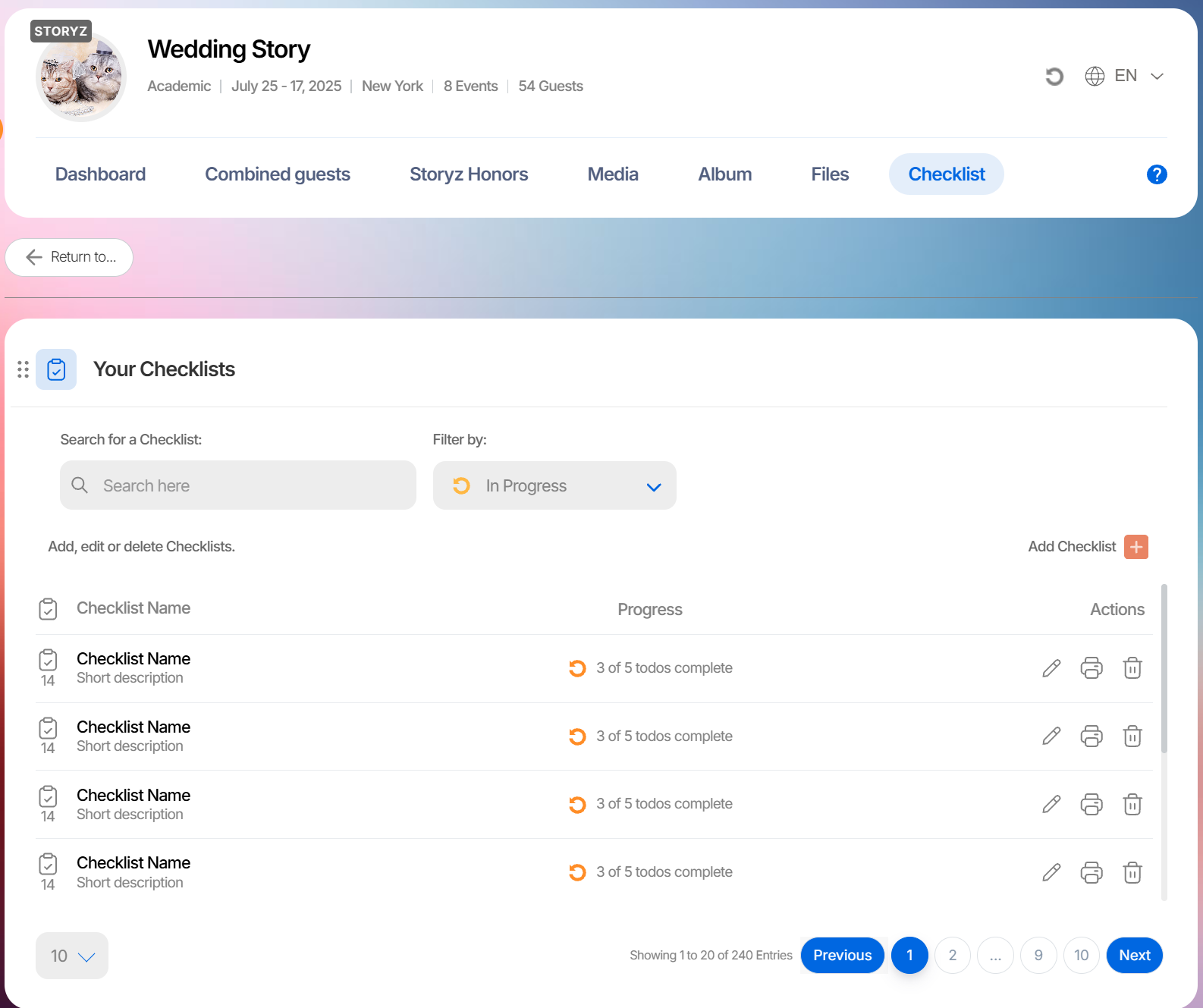
Storyz Todos can be accessed from the global page, or from the page header for each Storyz
Event Checklists can be accessed from the global menu, or from the Event Dashboard:
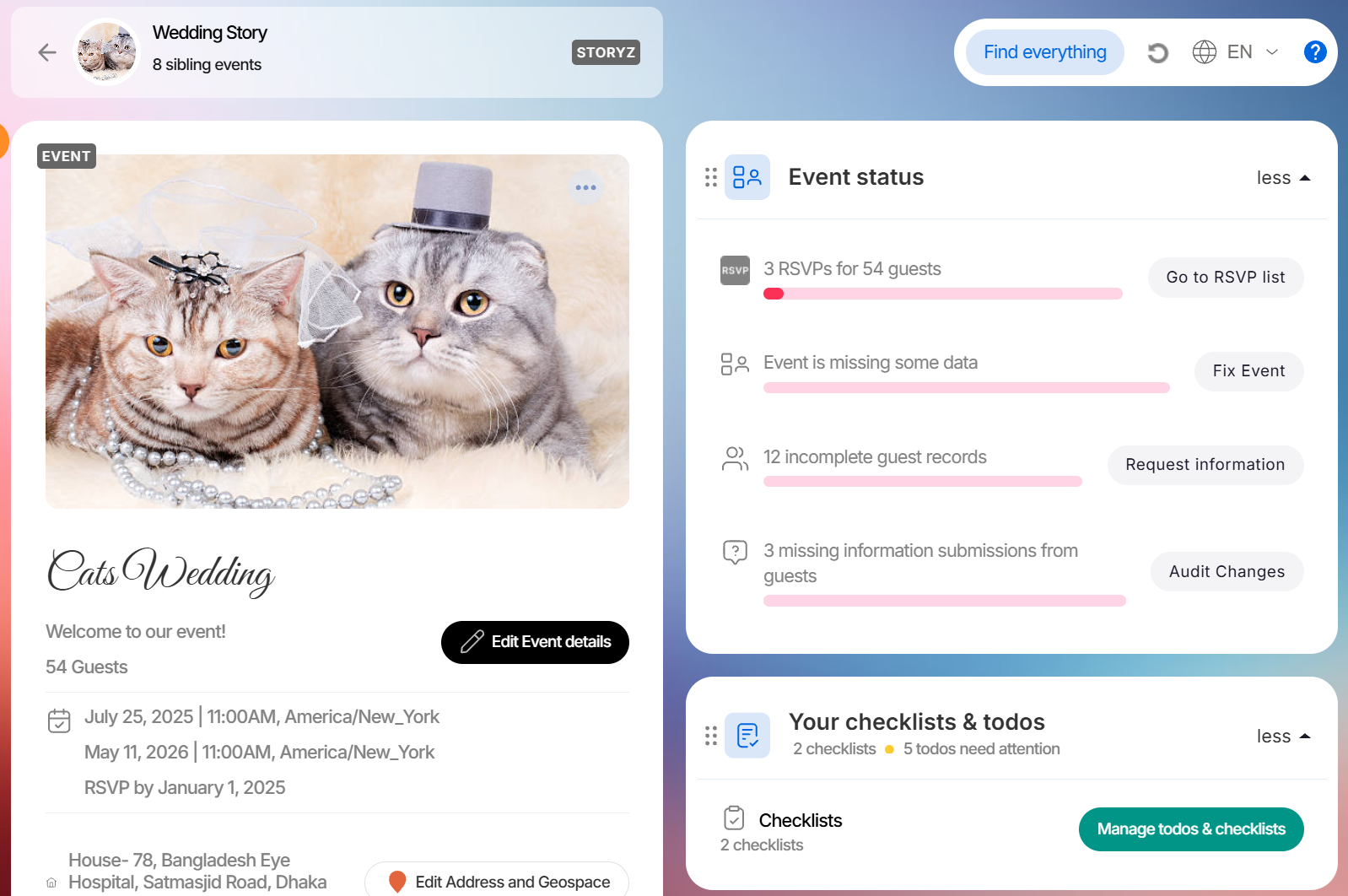
Admins can check if they have been assigned a task in the Checklist from their profile. Each individual task in a Checklist is referred to as a Todo
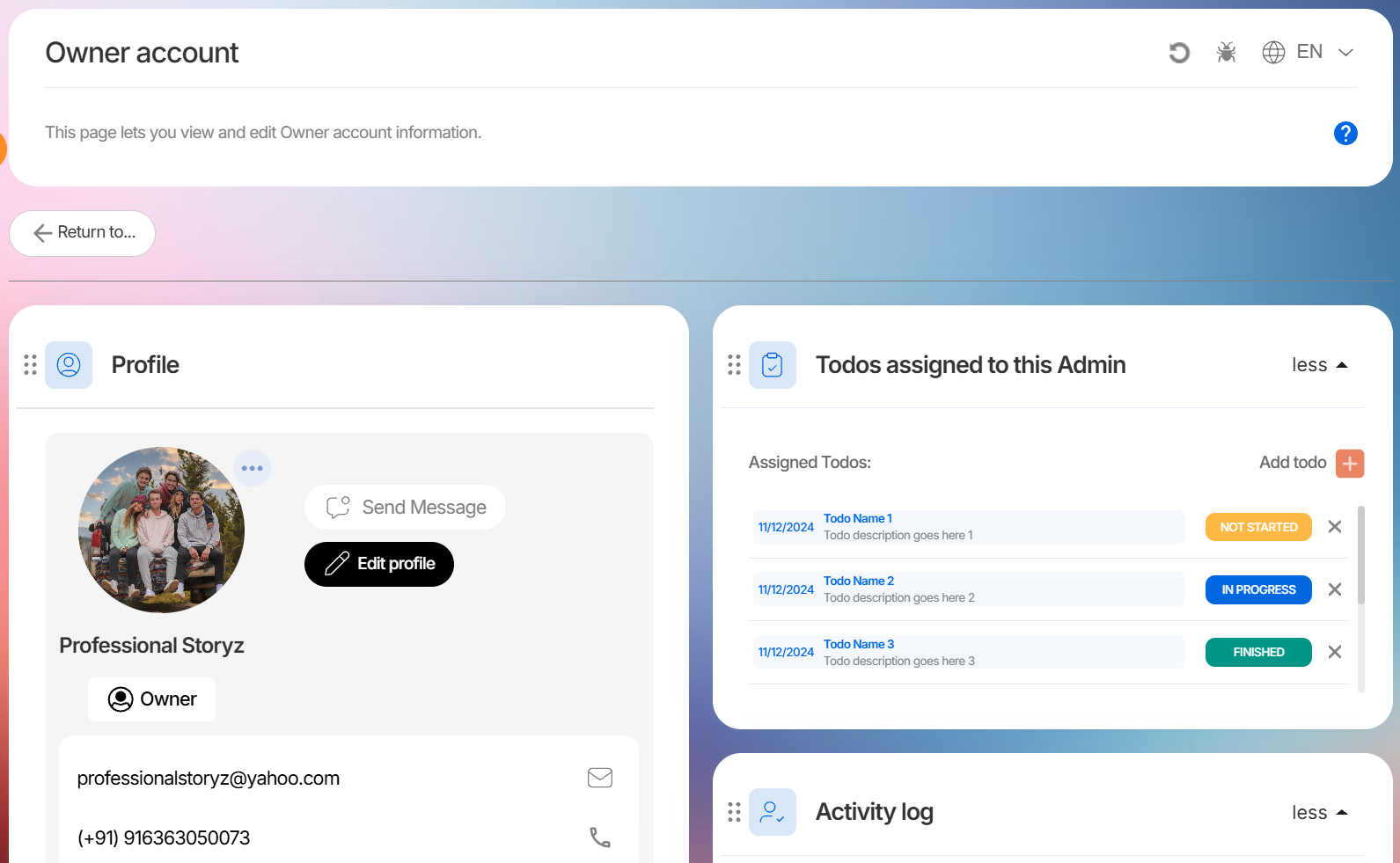
Todos
After you create your Checklist, you will be asked to create a list of "Todos". Checklist can have one or more "Todos" associated with it.
A "todo" is a task that needs to be performed relative to the organization, Storyz or individual event. Checklists consist of multiple Todos.

Each "Todo" has the following components:
Name | Visible name of Todo |
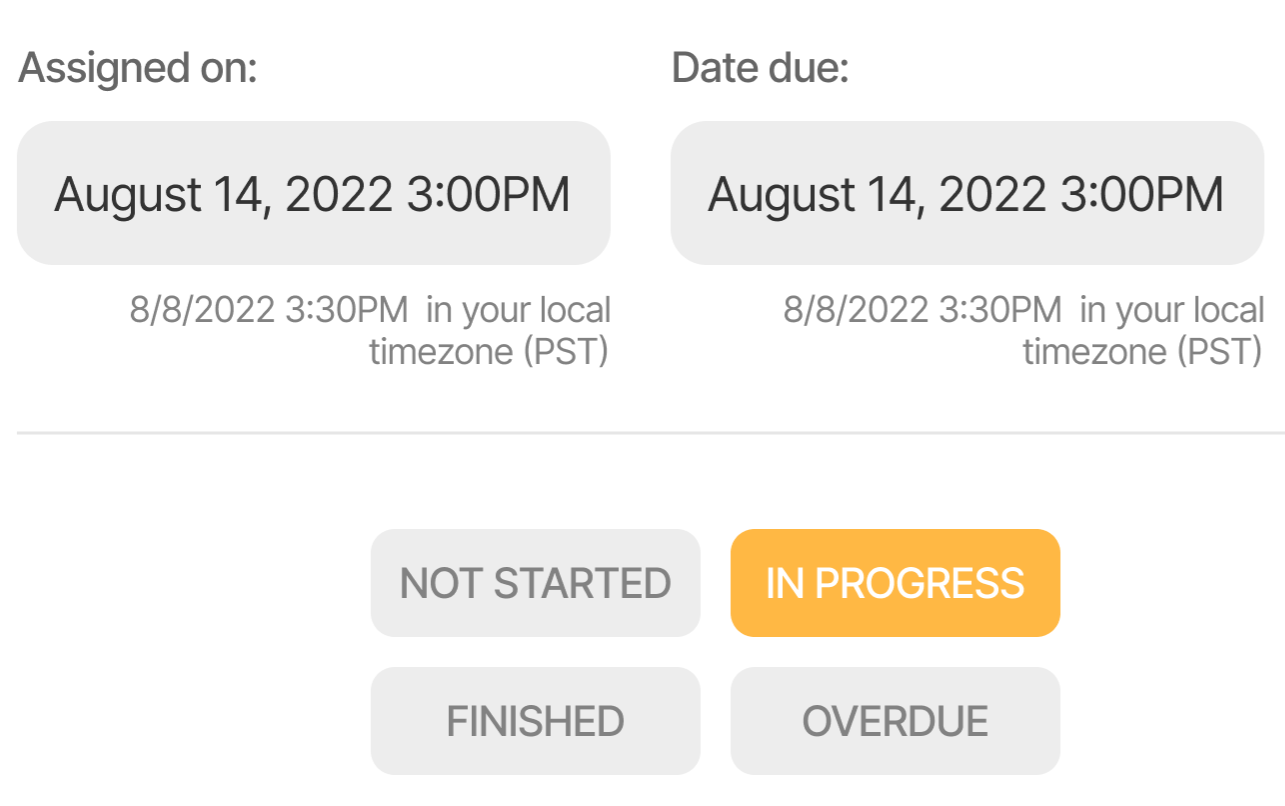
Date Assigned | When the Todo is created |
Date Due | When tasks related to the Todo should be completed |
Progress | Status of work on the Todo |
Description | Details of what the task is for |
Admins assigned to this Todo | Admins who are listed as responsible for the Todo. If a Todo is nearing its deadline for completion, they will be notified. |
Assigning Admins to a Todo
Each Todo can have one or more Admins assigned to it. That allows you to divide responsibility for completing tasks related to your Organization, Storyz, or events among your Admin team.
Admin assignments from your team require the Professional service. Locator and DIY only allow 1 Admin per account. account.
To Assign Admins (including Clients) to a todo:
- Open the Checklist, then the Todo
- Scroll down if needed to find the "Add Admin" button
- Select an Admin from your list
- You can un-assign an Admin by selecting the "x" icon in the list
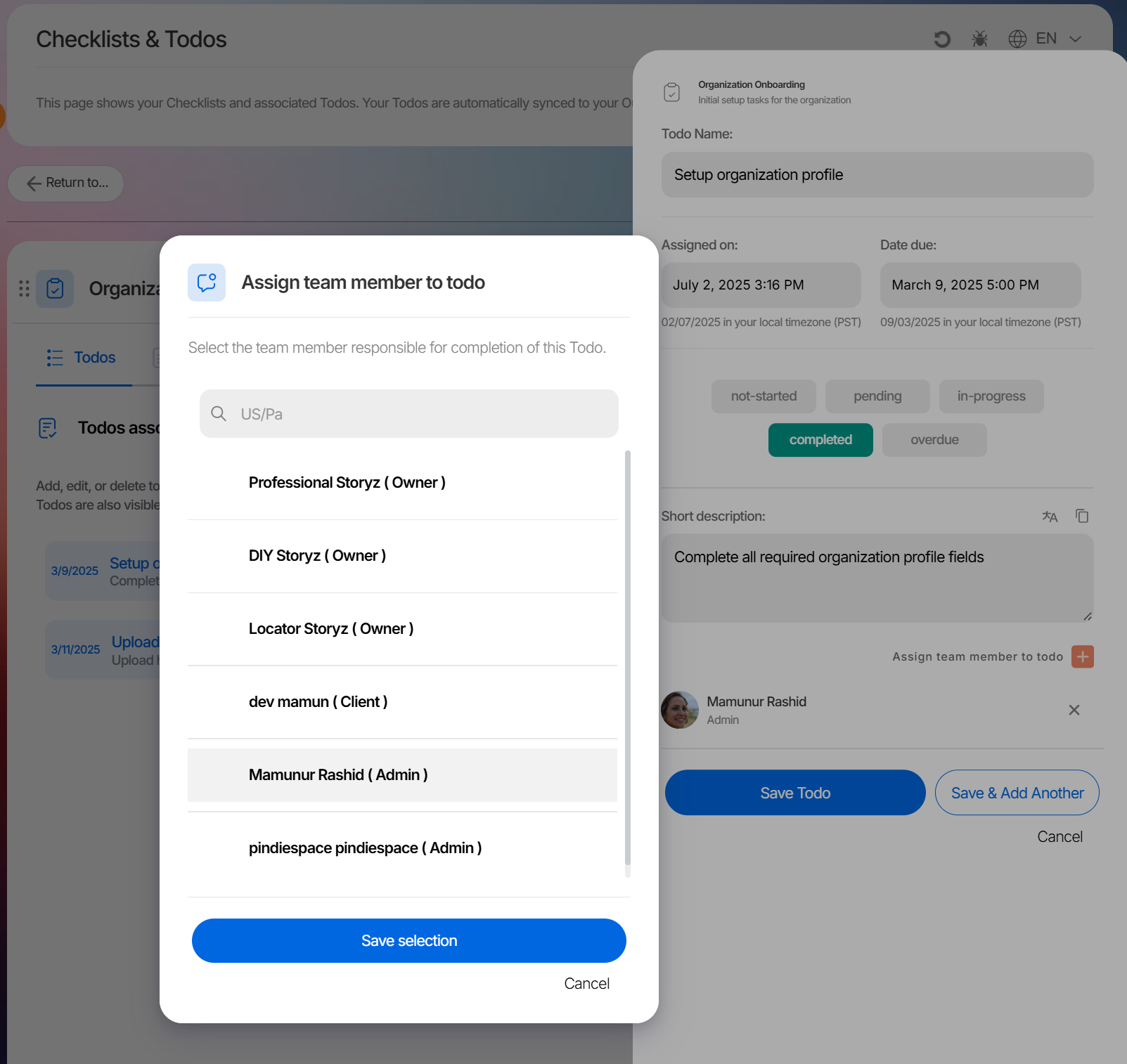 Assigning a team member to the Todo
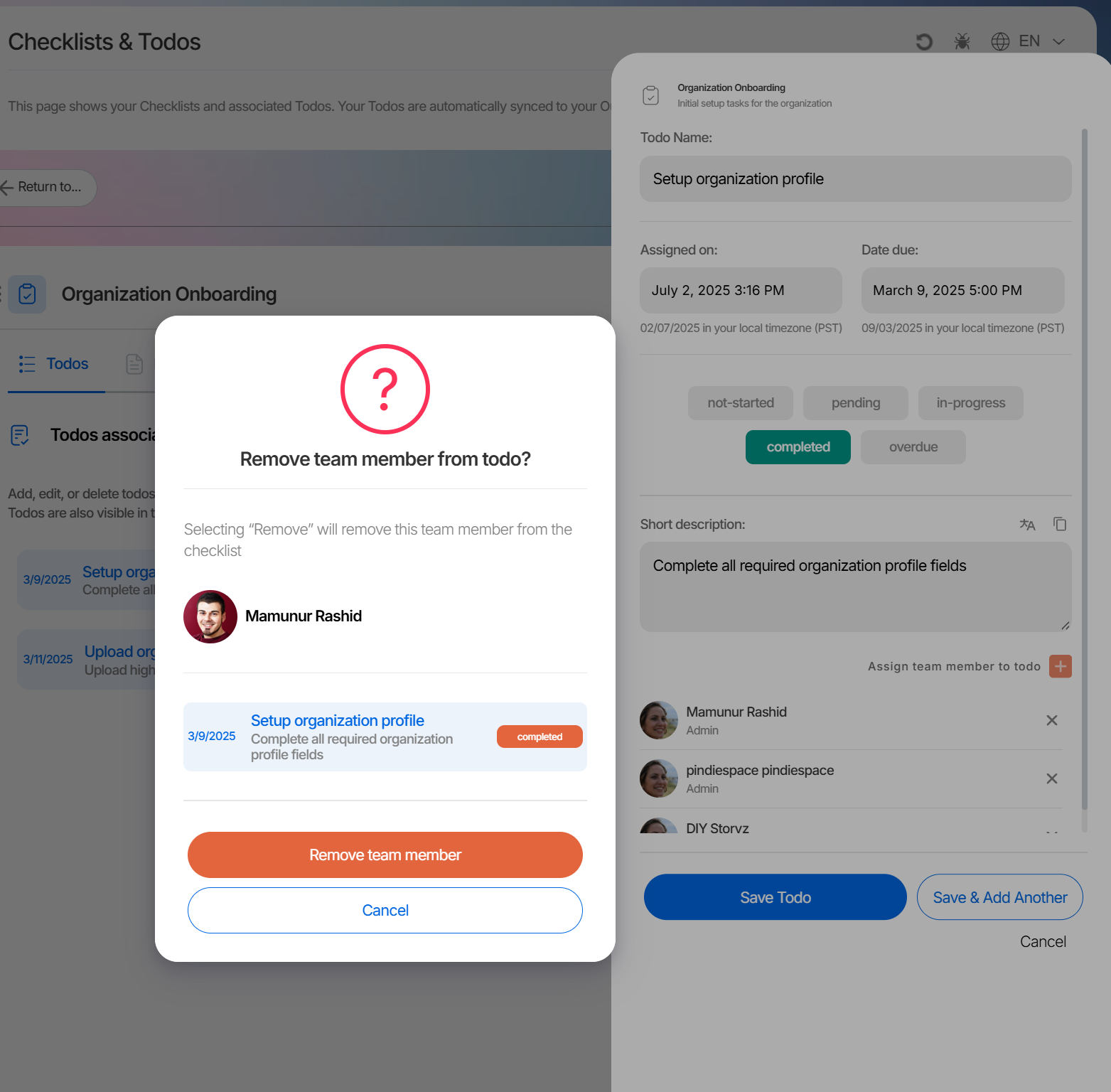 Removing a team member from the Todo
Once an Admin is assigned to a Todo, they will receive messages.
Setting a Todo timeline and status
Each Todo also has a completion status, which is one of the following:
- Not started
- In progress
- Completed
- Overdue
To check the status of todos for a specific event