For Guests : Using the Keepsake Album
During the event, guests can use the Guest App to upload photos and videos. After the event, they can still post media for review by the event-planners, which can also be included in the Keepsake Album.
About the Keepsake Album
The following picture shows what guests see in the guest app:

Viewing the Keepsake Album from the Guest App
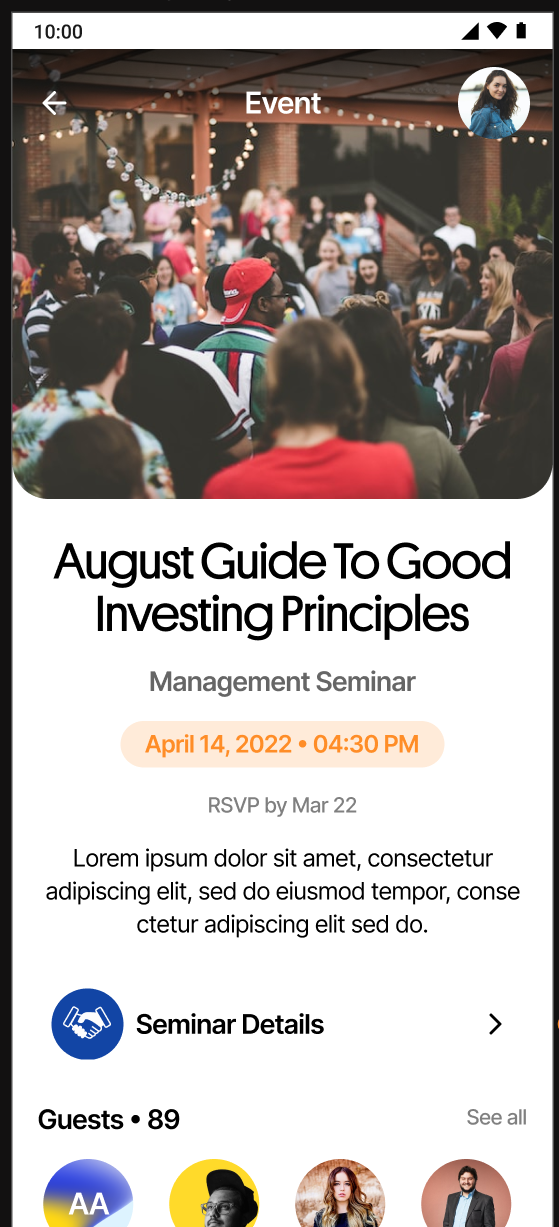
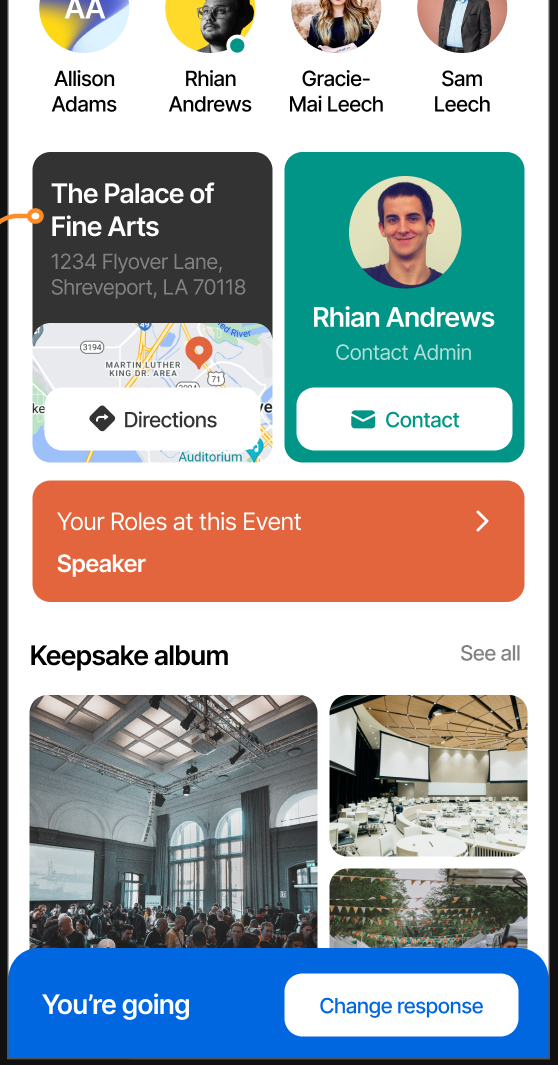
When out attend an OurStoryz event, you can directly upload images and video from the event. You can even geotag your images. In the Guest App, access to the Keepsake album appears directly on the event page
To find the Keepsake, just scroll down from the top of the event page...
|
|
If you don't see the album, scroll down | Select any image in the Keepake album thumbnail to see the entire album. |
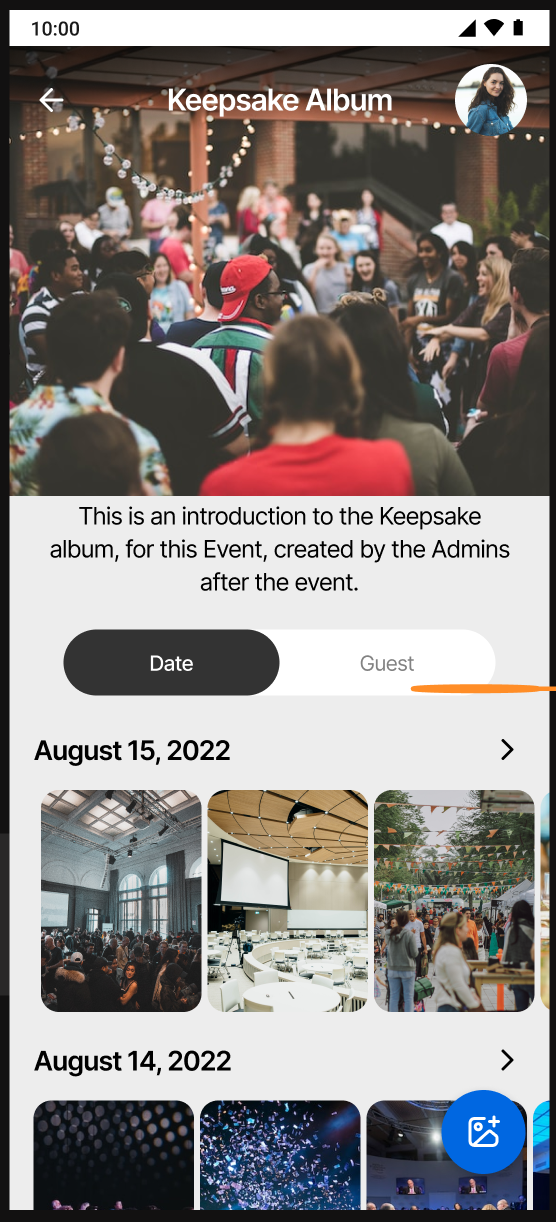
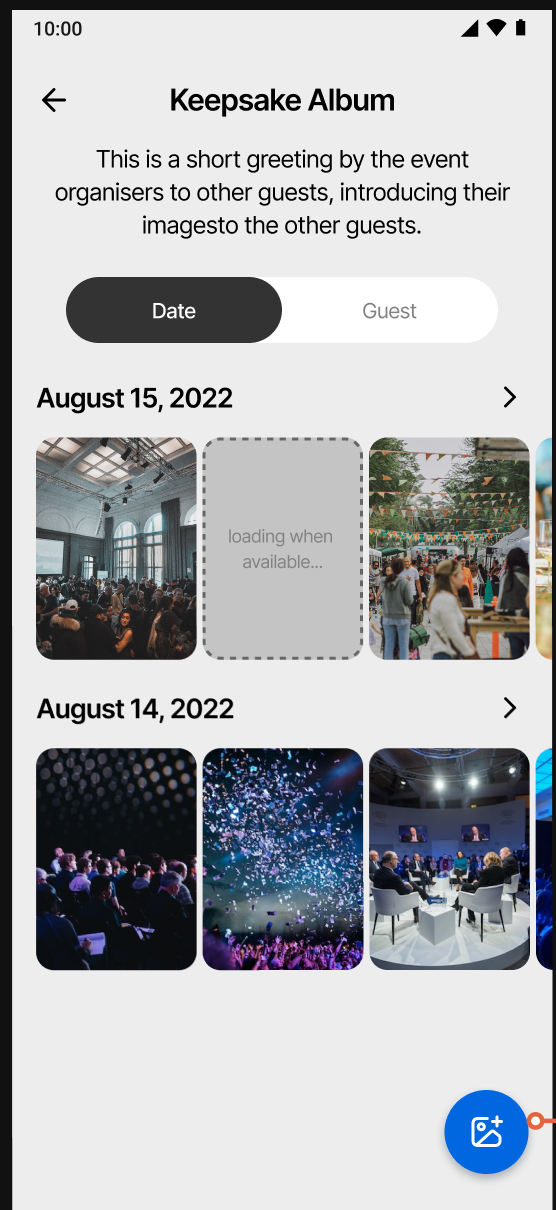
You can view the album, and sort by date or guest.
|
|
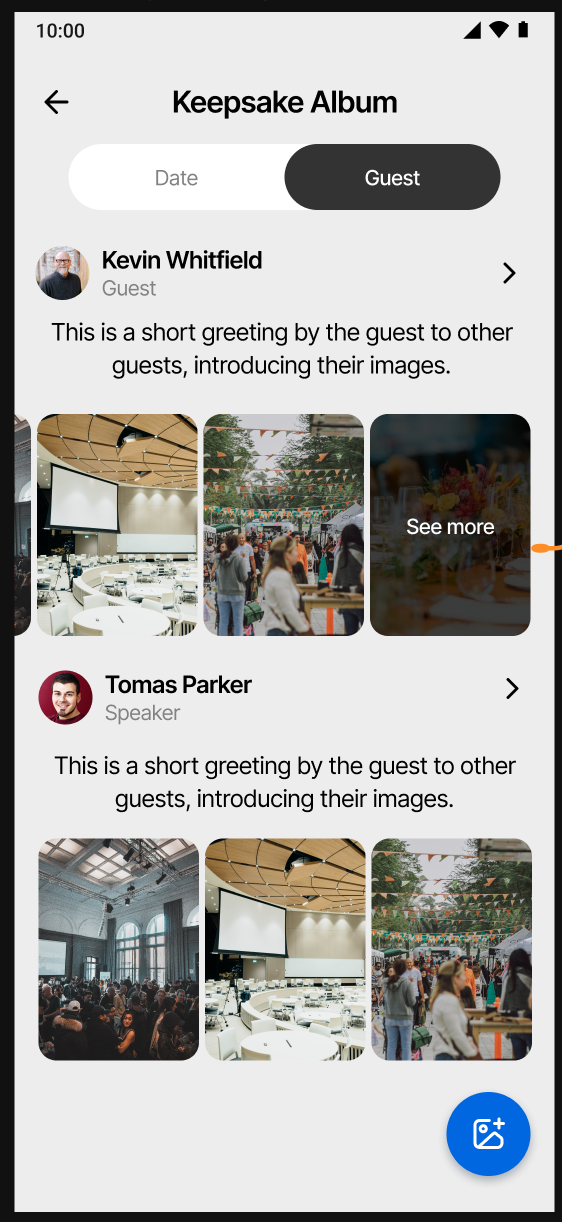
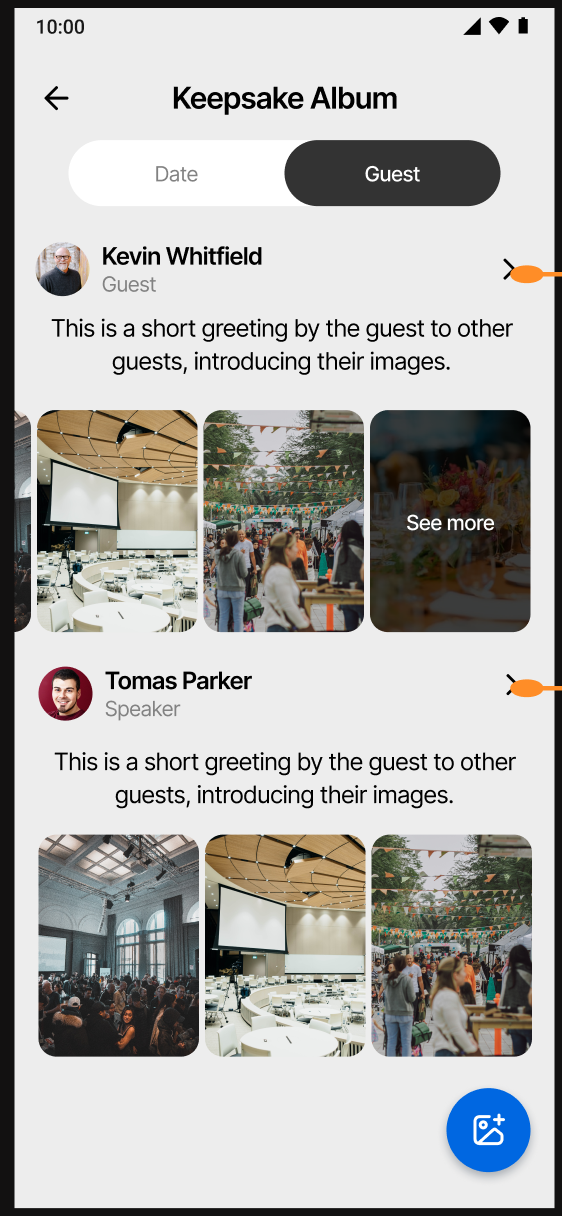
If you select the "by guest" option, you will route to the guest's social profile. Look for media specific to that guest underneath their information. On the guest profile, you may need to tap the "Keepsake Album" button to view.
|
|

Uploading to the Keepsake Album
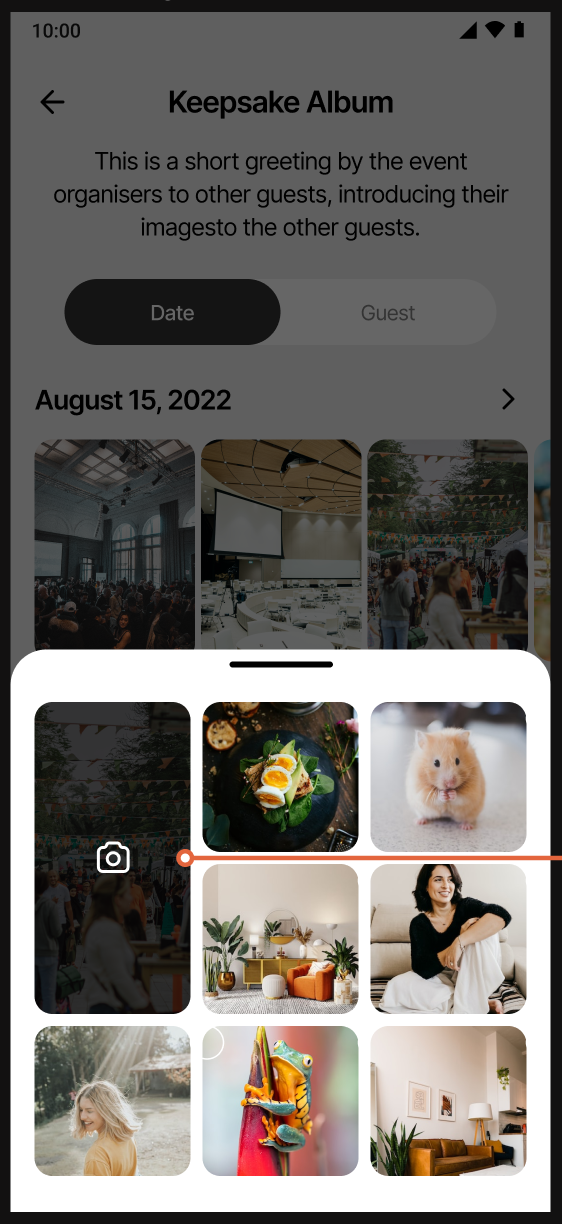
If you are invited, and RSVPed, you can also upload directly to the Album from your mobile device by selecting the "Add" button at the bottom-right of the mobile screen.

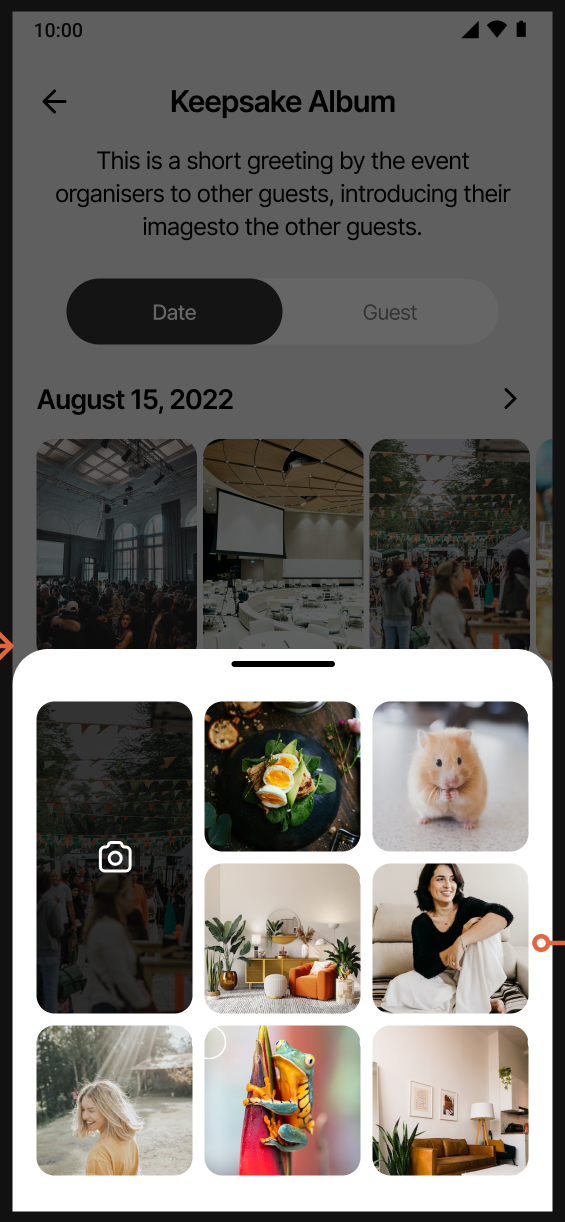
Tapping "Add causes a dialog to slide up from the bottom of your screen. This dialog contains your mobile's media gallery content, and also has a link for live addition using your mobile's camera.
|
|
|
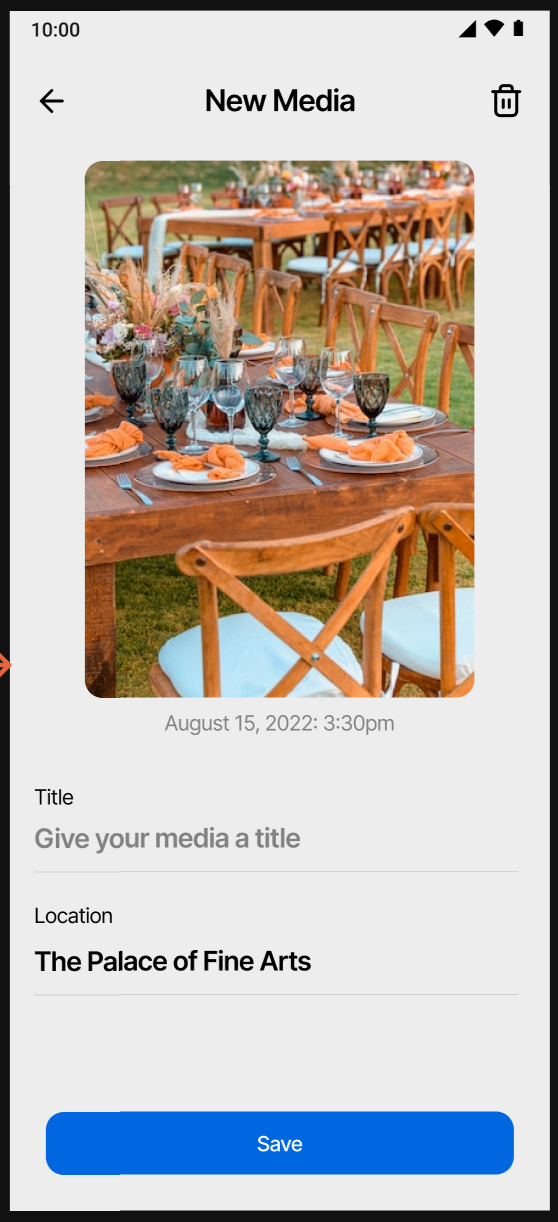
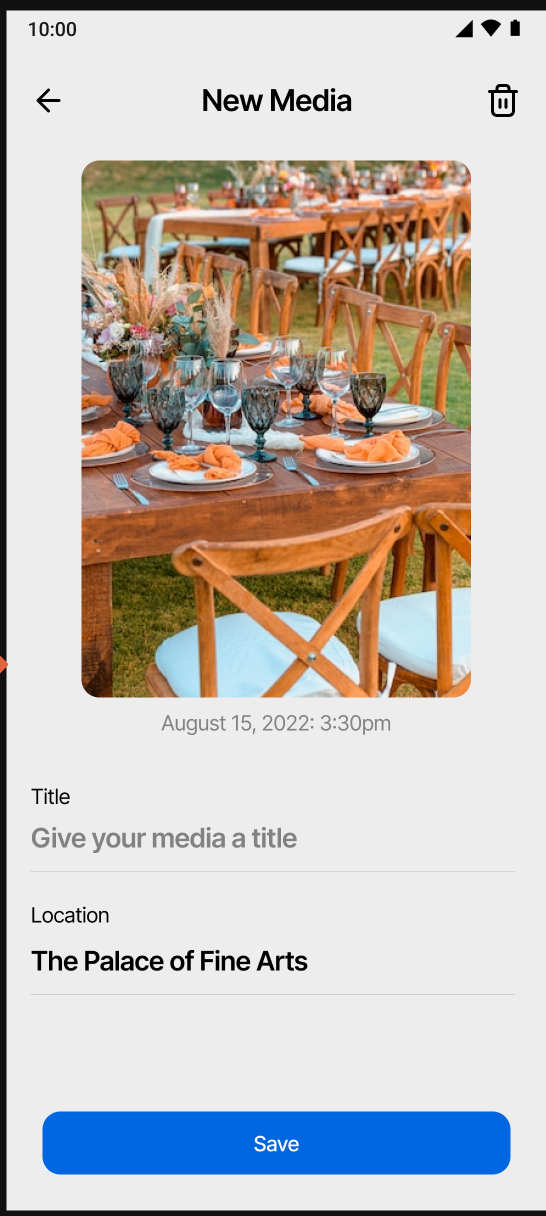
Select the "Add" button at the bottom-right of the screen | Images in your current mobile media library will appear. Scroll through them, and select the one you want to add | After adding the media, you can add additional information describing it, and even detail its location! |
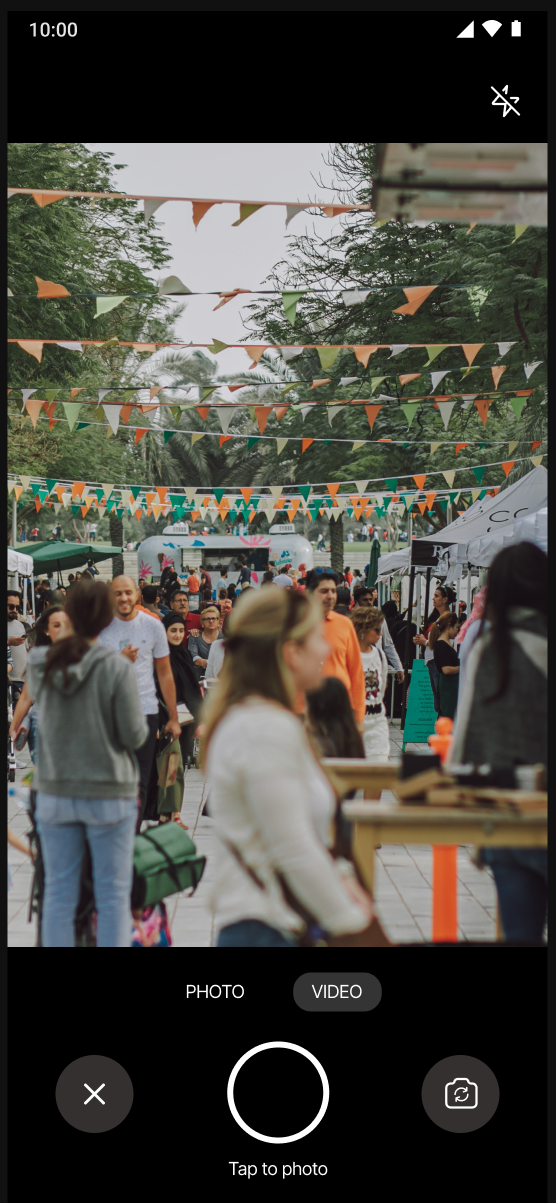
Using the camera to take a live shot is almost the same as the media library:
|
|
|
Select the "Camera" thumbnail at the top left- up the slide-up library | You will take the actual image using your mobile Camera app | After adding the media, you can add a title and location. |
The Keepsake Album on the Web
Some guests at your OurStoryz event may prefer to use the ourstoryz.com website. They can also view the album and upload - it's just a little more complicated.
|
|
Access the mini-website by searching for it in ourstoryz.com by name or date, or from an email invitation. | Scroll down until you find the Keepsake Album link for the event. |
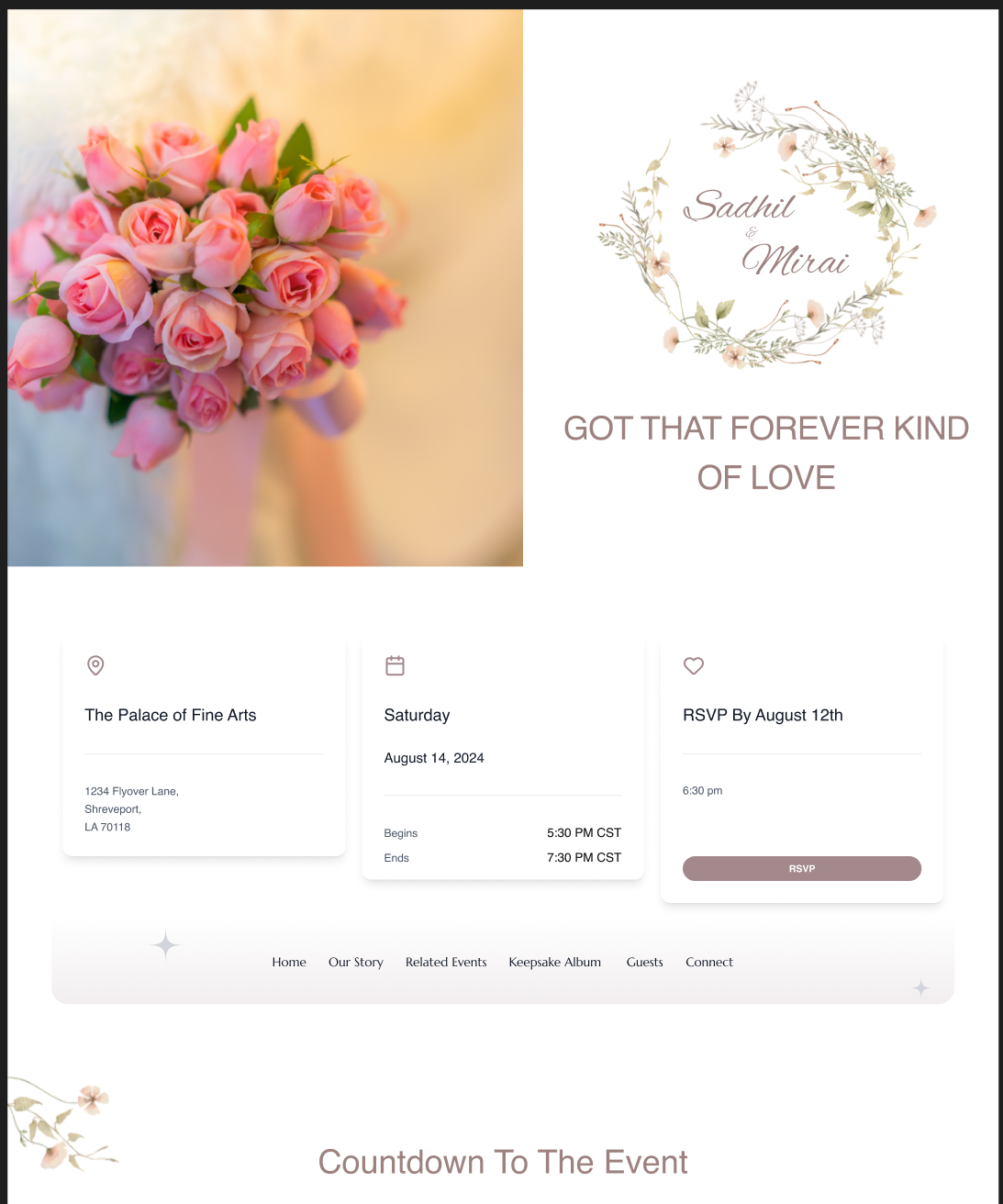
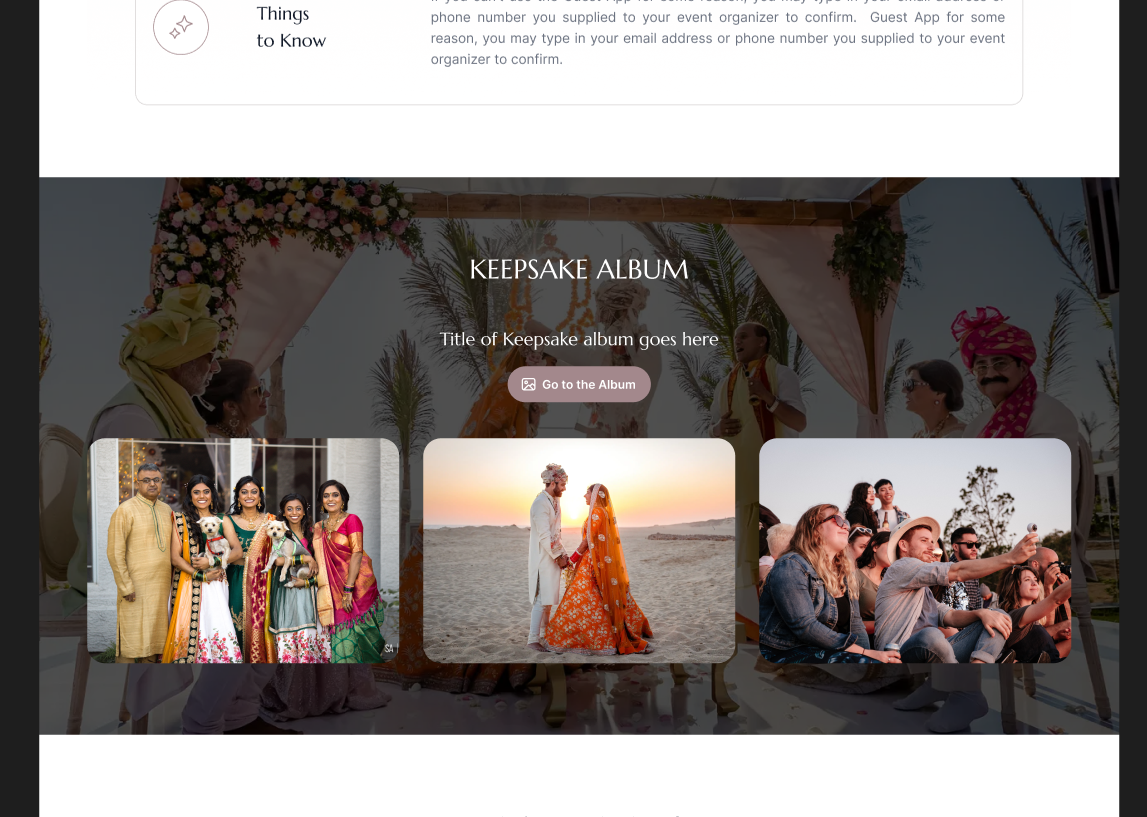
The Keepsake Album is the "Storyz" for the people hosting the event. It functions like an extended, online photo album. Each event the people create in OurStoryz is added automatically to their album, a "Life Storyz" for them.
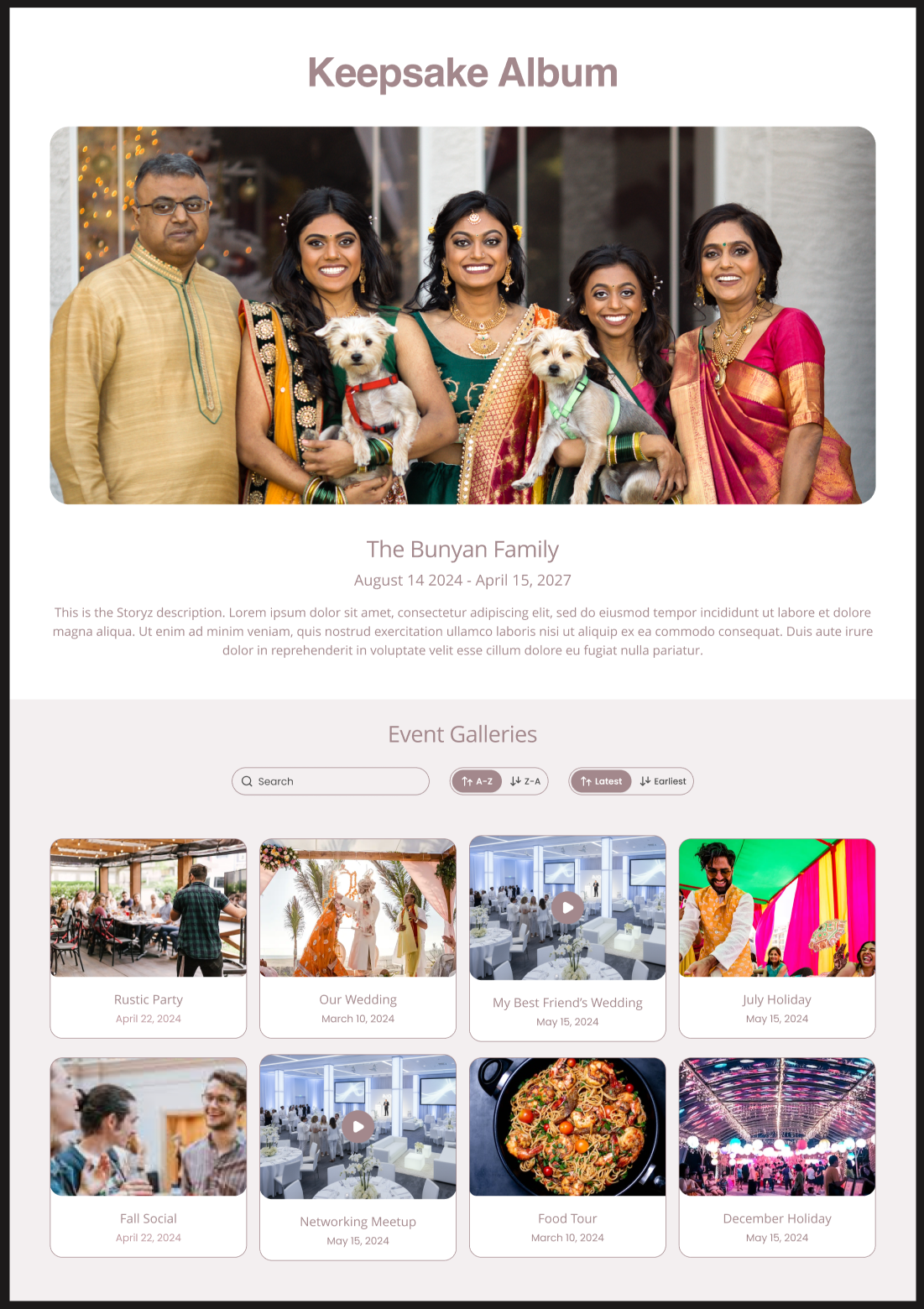
THe home page of the Keepsake Album leads to keepsakes from each event. Guests and the event creators can upload images and video into the album, as well as text describing each image or video.
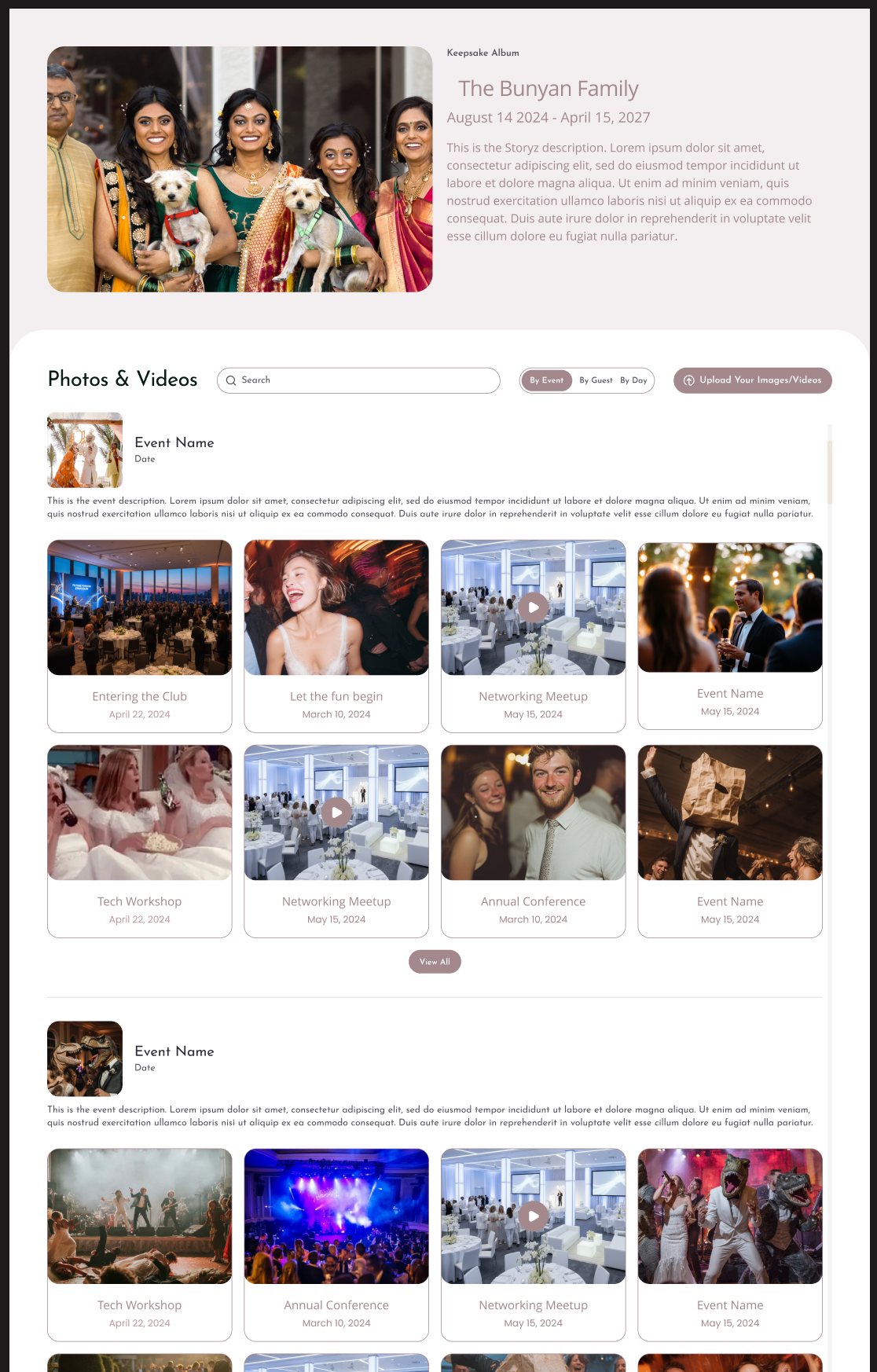
The Keepsake Album can be sorted
- By event
- By guest uploading media
- By the date

Here is the screen, showing sorting by event.
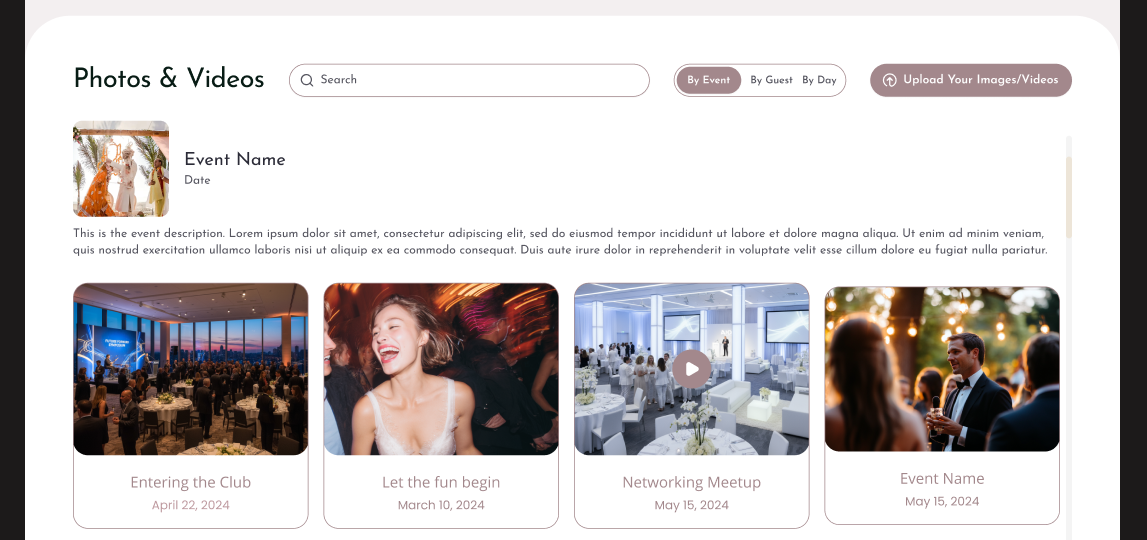
This screen shows sorting by guest. It contains the cumulative history of their uploads. If a guest uploaded to more than one event in a Storyz, all the media will appear here.
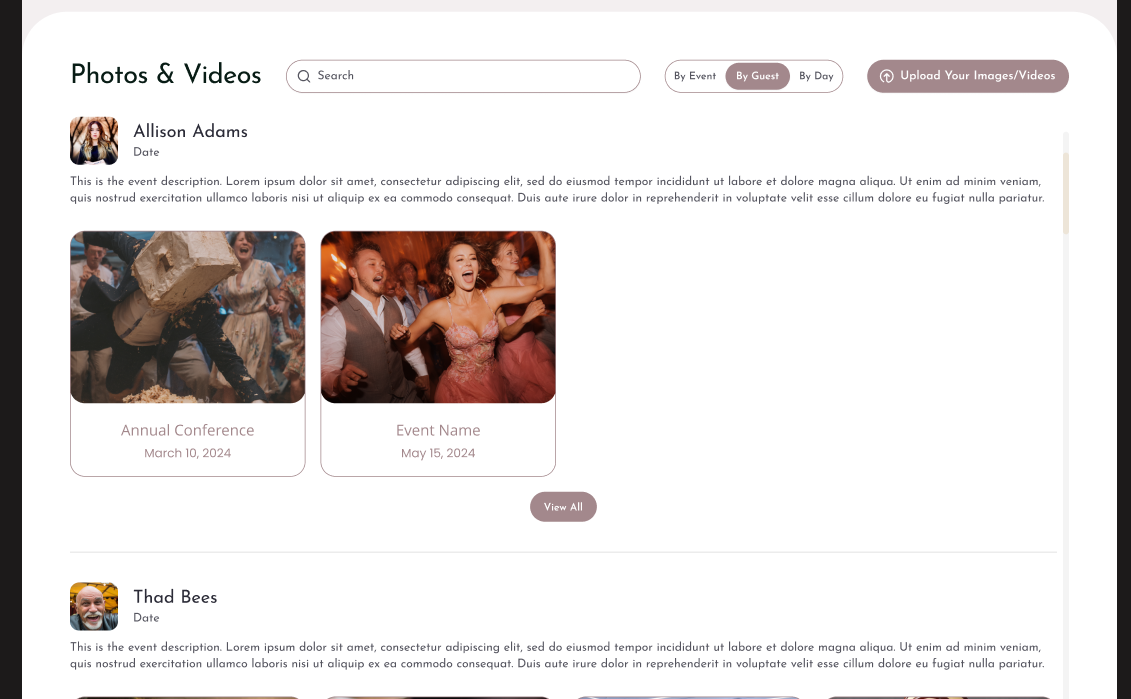
Finally the album may be sorted by date, providing a timeline of events.
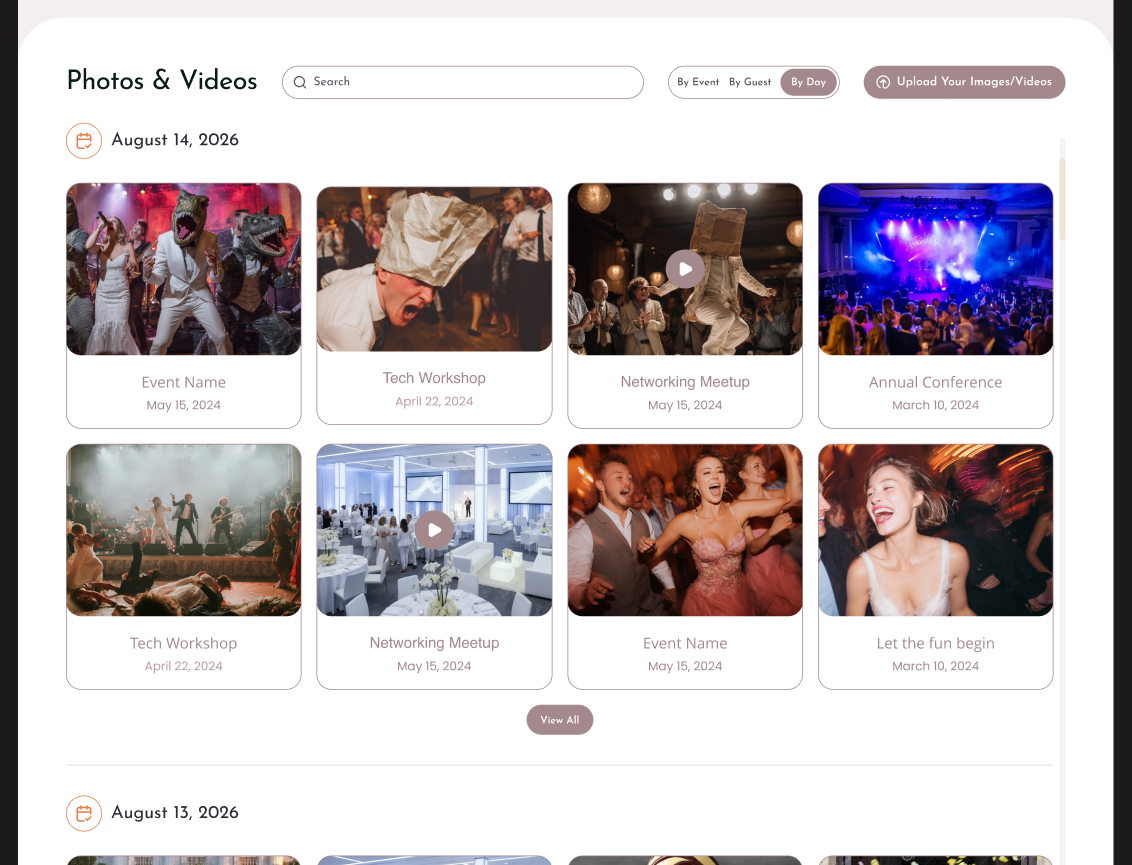
Uploading to the Keepsake Album
Web upload to the Keepsake Album work by validating a guest, and ensuring they participated in the event.
- The guest goes to the web version of the Keepsake Album
- The select "Upload Your Images/Videos"
- A One-Time Link is sent to the email they specify
- The system checks both the guest email and the event, ensuring that the guest was actually invited, and RSVPed for the event
- The guest selects the link, and is returned to the page they were on, with the ability to edit
Controlling Access
There are 2 ways to control access to the album
The event-planner can turn this option on and off in the CMS
The client of an event-planner can turn the option on and off, overriding the event planner if necessary
In the CMS, the event planner sees the following interface
The client, providing their login from the web or Guest app will see controls that allow them to adjust visibility and access to the Keepsake Album.