For Event Creators : Event Management : Keepsake Album : Guest App Albums
Once you've created your Keepsake album, your guests and web visitors can view it from within the OurStoryz guest app, or on your event website.
View from the Guest App
Guests who are using the custom app for your event can find the Keepsake Album on the home page of each event they are invited to.
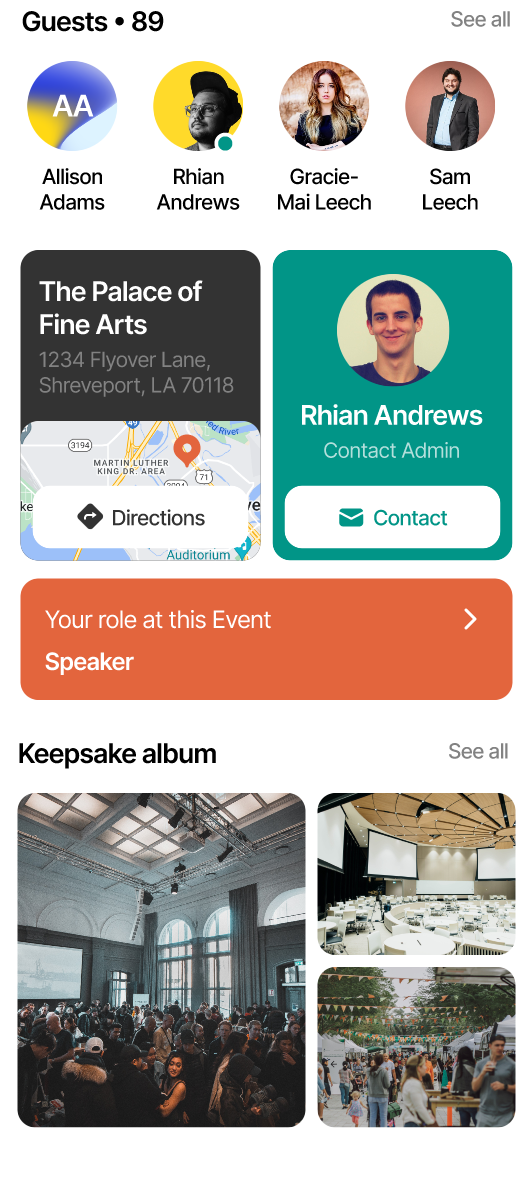
Scroll the event page down, and you will see highlights of the Keepsake album. Select "See all" to go to the album home page
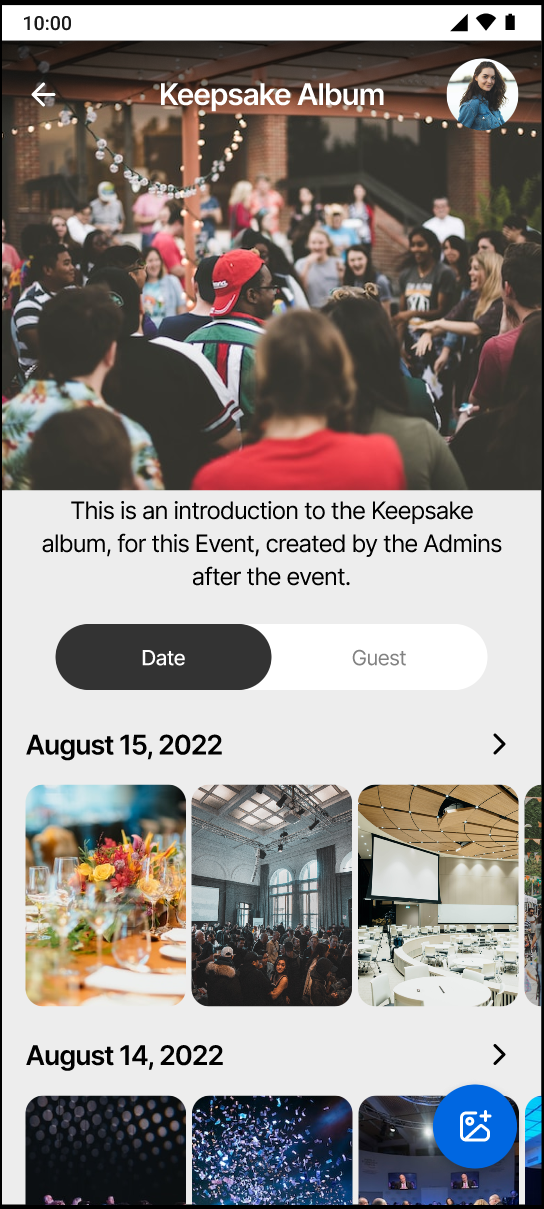
The Keepsake album on the guest app can have images and video sorted by the date, or by the guest who contributed uploads
Uploading from the Guest App
Guests using the app can also upload contributions to the Album during the event. All they need to do is to select the blue "upload" button on the lower-right of their screen. Note that this does not work if they are viewing an individual guest's contributions to the album.
While browsing the album, check the lower-right screen. You will see an "upload" button similar to this.

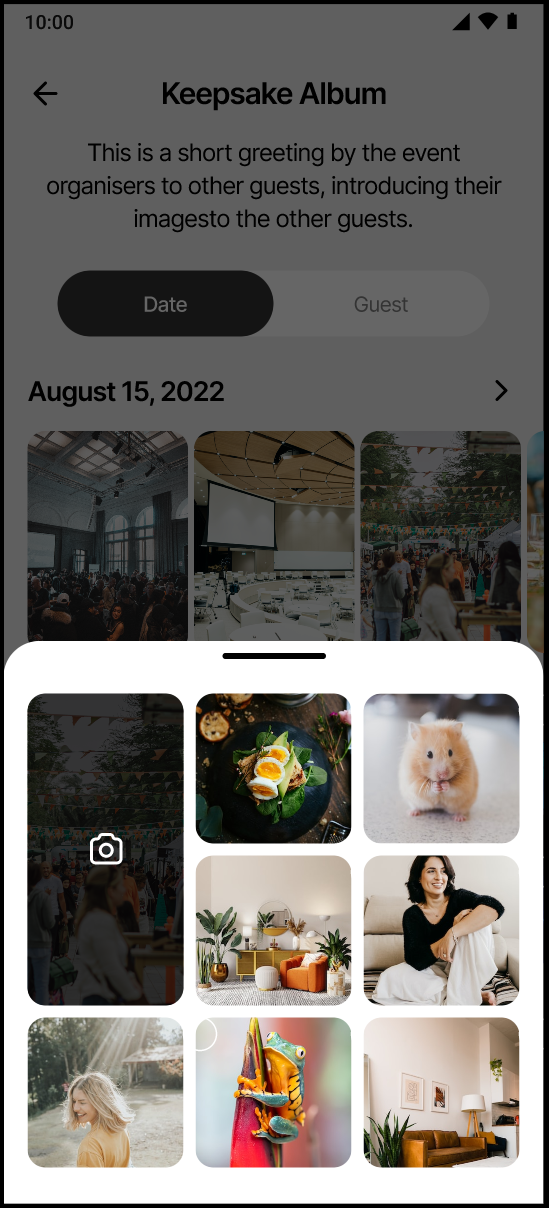
When the upload is selected, the user has the option using an existing image or video in their mobile's image app, or taking a picture or video with their camera
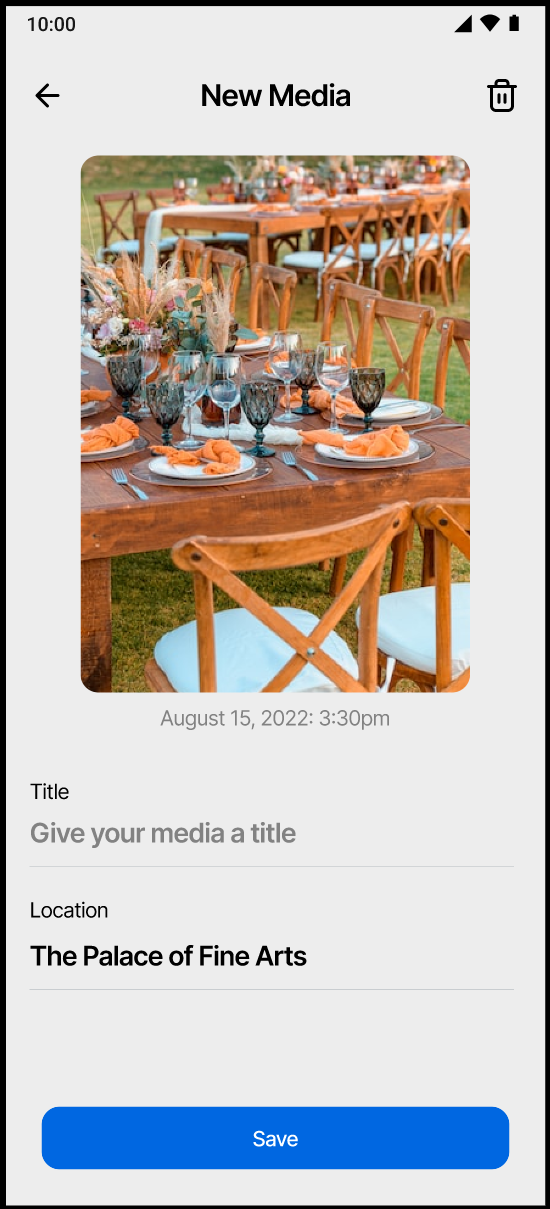
Once the image is selected, the guest can add some additional information. They can give the image a title, and also selection a location to "geotag" the media.
View from the website
The guest app displays your album with a standard style suitable for mobile. On your event website, you can customize the view to create an online photobook for the event, and select from a large number of styles.
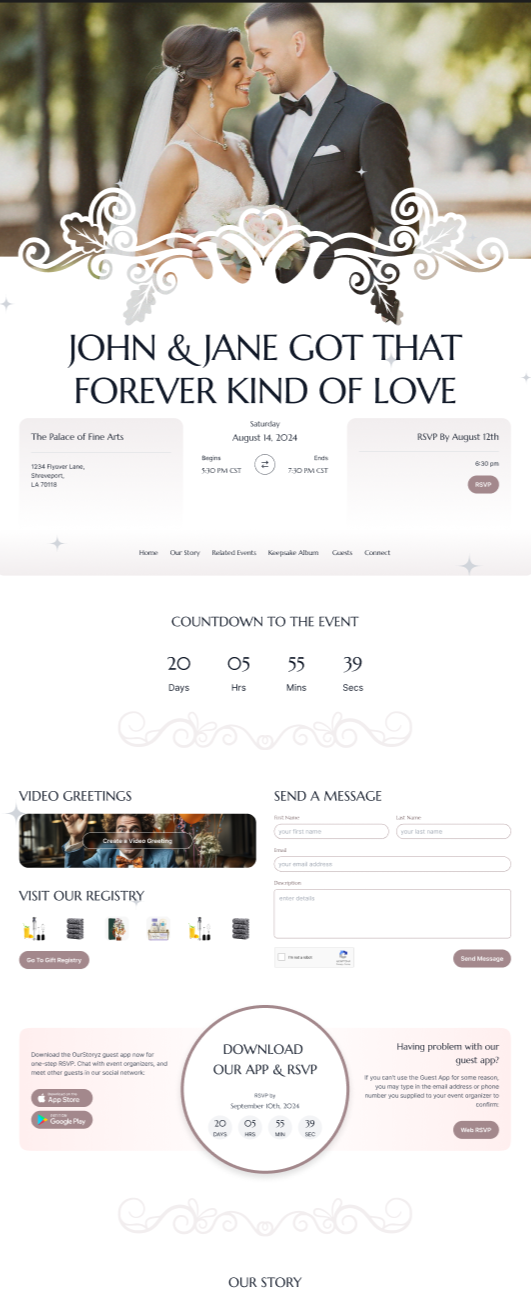
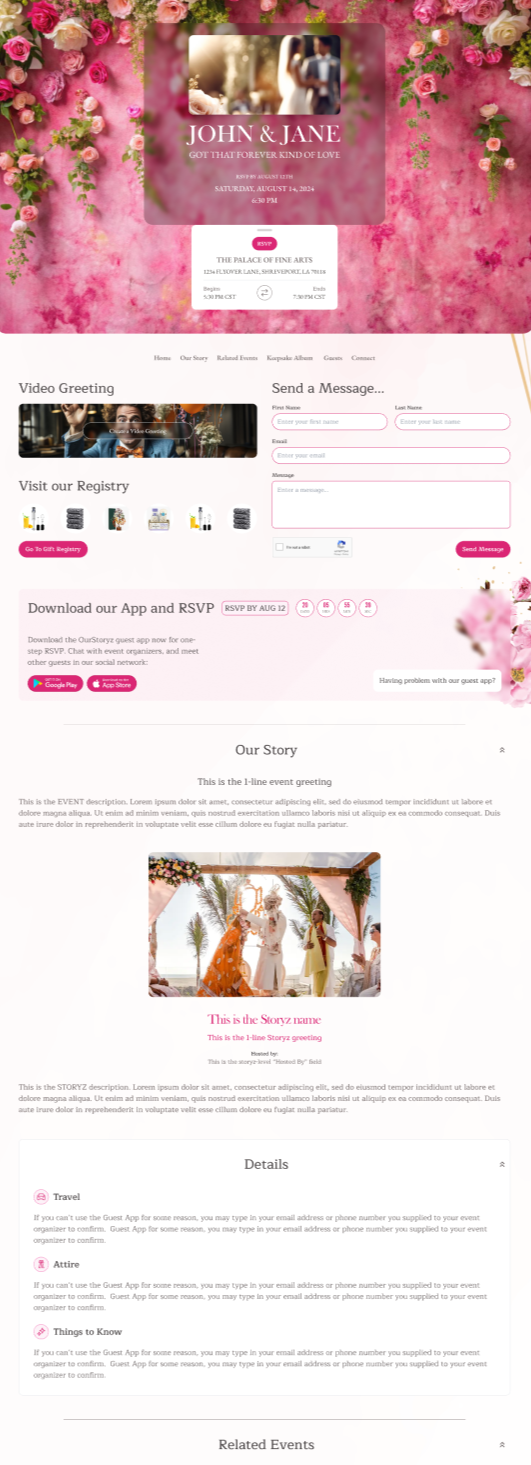
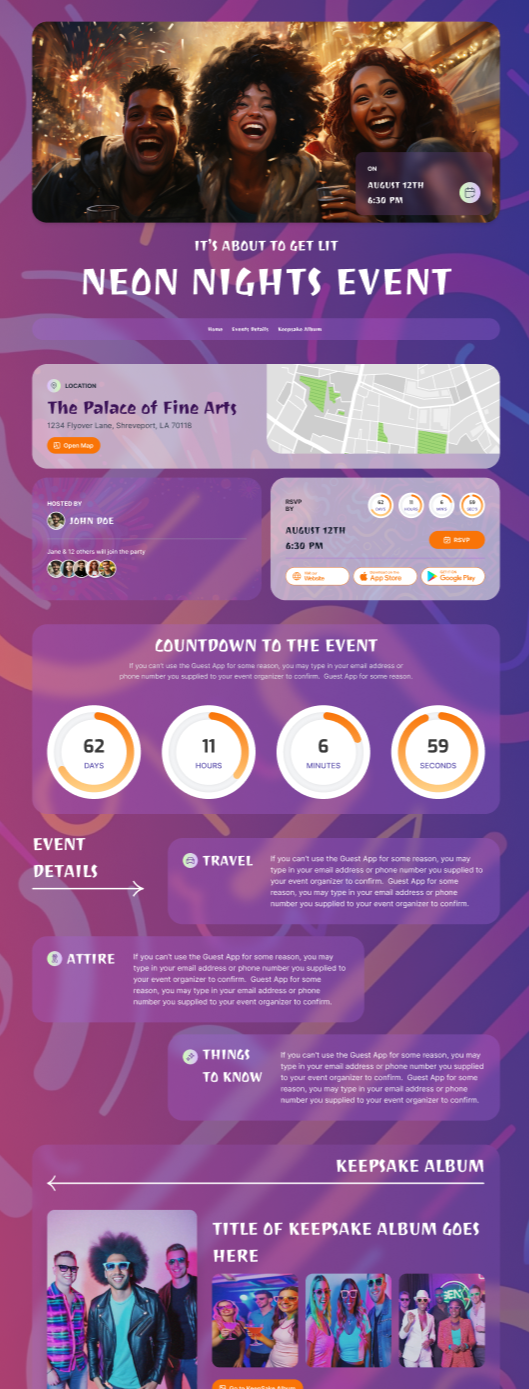

After you've selected your style, select the arrow on your web address to go directly to the public web version of your Album.
You can also find the album by navigating to your event website, and looking for links to your Keepsake Album.